![SURF Logo Horizontal Navy Blue.png]](https://support.surfinternet.com/hs-fs/hubfs/Visual%20Assets/Logos/New%20Surf%20Logos/PNG%20Version/SURF%20Logo%20Horizontal%20Navy%20Blue.png?height=40&name=SURF%20Logo%20Horizontal%20Navy%20Blue.png)
Manage Your Surf Internet Wi-Fi with eero
Need to find your Wi-Fi password, connect a new device, or rename your home network? Use the free eero app to manage your Surf Internet Wi-Fi from your phone.
1. Download the eero App and Sign In
First, install the eero app on your smartphone. It’s available for both iPhone and Android.
- Open the Apple App Store or Google Play Store and search for eero, or visit eero.com/app.
- Download and open the free app.
- Sign in using the email address or mobile phone number associated with your eero account, or follow the on-screen prompts if you’re getting started.
- Follow the instructions to verify your account through an available sign-in method.
- After signing in, look for your existing Surf Internet Wi-Fi network.
Already have Surf Internet Wi-Fi? If Surf installed and configured your eero router, your Wi-Fi network is already set up. Do not create a new network. If your existing network doesn’t appear, contact Surf Internet Support.
Your eero account sign-in code is different from the Wi-Fi password used to connect devices.
2. Find Your Wi-Fi Name and Password
Use these steps when connecting a phone, laptop, smart TV, or other device to your home Wi-Fi.
STEP 1
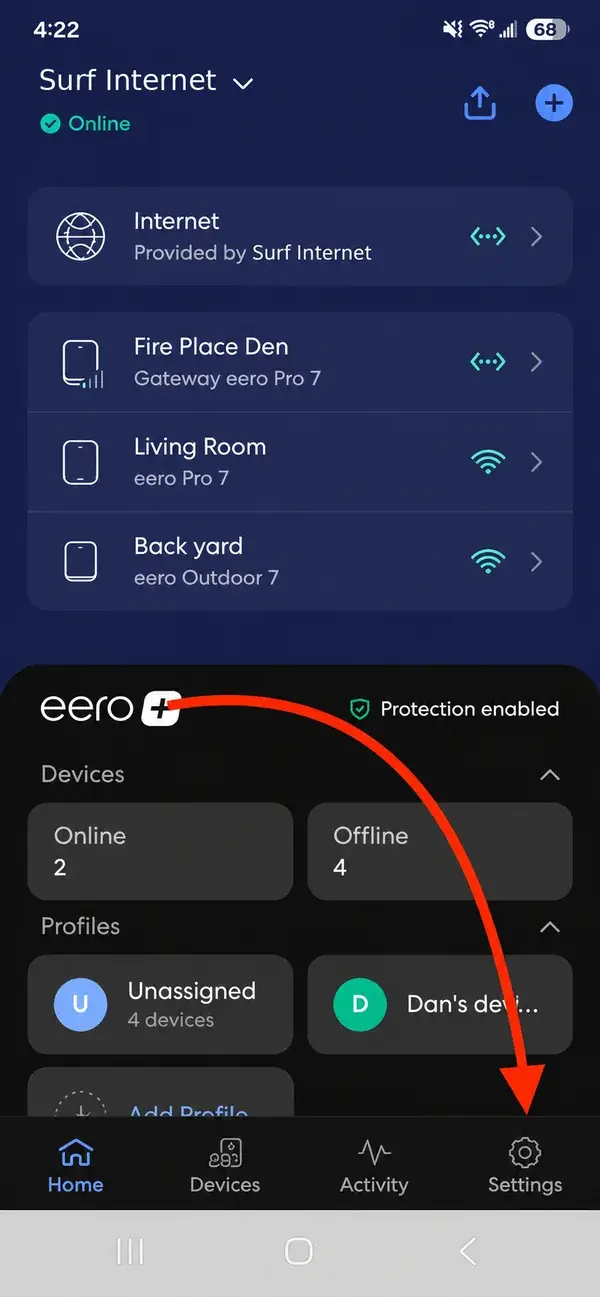
Open Settings
Open the eero app. Tap Settings at the bottom-right of your screen.
Tap the picture to enlarge.
STEP 2
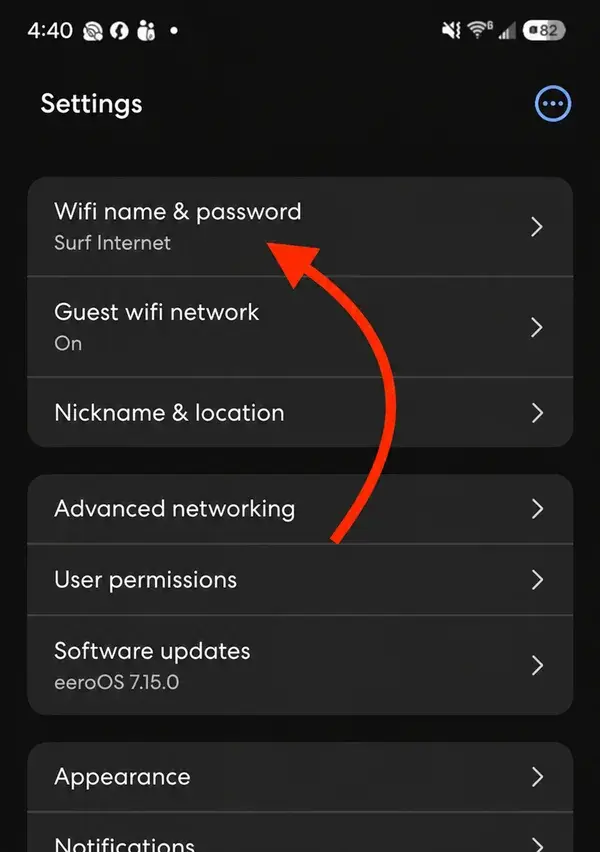
Select Wi-Fi name & password
From Settings, tap Wi-Fi name & password near the top of the list.
Tap the picture to enlarge.
STEP 3
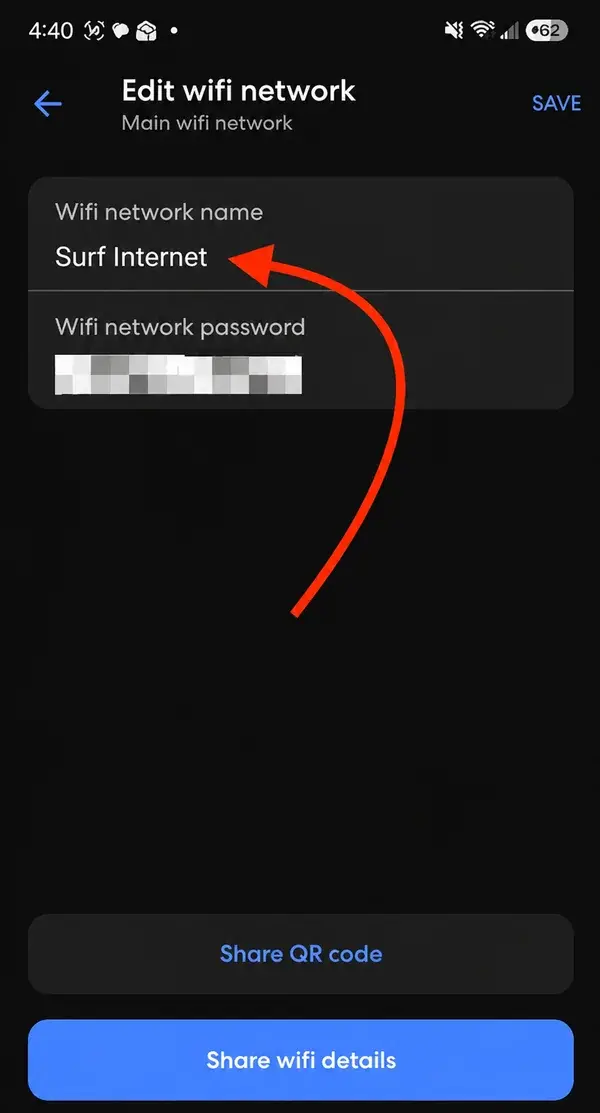
View your Wi-Fi details
The Wi-Fi network name and Wi-Fi network password appear on the Edit Wi-Fi network screen. You can view, update, or share the details from here.
Tap the picture to enlarge.
Helpful tip: Your Wi-Fi name (SSID) is the network shown in the wireless settings of your devices. Your Wi-Fi password is what you enter to connect. The eero app can also help you share the connection details or a QR code.
3. Change Your Wi-Fi Name or Password
Want to personalize your network or update your password?
- Open the eero app and select Settings.
- Tap Wi-Fi name & password.
- Tap the Wi-Fi network name or Wi-Fi network password field and enter your changes.
- Tap Save at the top-right of the screen.
Important: You’ll need to reconnect devices. Changing your Wi-Fi name or password may disconnect phones, laptops, TVs, gaming consoles, security cameras, printers, and other devices. Select the updated network and enter the new password on each device.
Password tip: Choose a unique password that is long and difficult for others to guess.
Having Trouble?
Not receiving your sign-in code?
Confirm your email address or phone number is correct. Check your email’s spam or junk folder and follow the app’s instructions to request another code if necessary.
Don’t see your network in the app?
Make sure you’re using the eero account associated with your installed network. If it still doesn’t appear, contact Surf Internet Support rather than creating a new network.
A device won’t connect after changing the password?
Open the device’s Wi-Fi settings, select the updated network, and enter your new password. If needed, forget the saved network and reconnect.
We’re Here to Help
Surf Internet Technical Support is available 24/7.
Call:888-274-6381
Email:support@surfinternet.com